
For hotel web developers and marketing teams who want to connect the igumbi Internet Booking Engine (IBE) to their analytics or tag management platform, like Google Analytics GA4 or Matomo.
How it works
The igumbi IBE fires tracking events at each step of the booking flow via the Obt.tracker() function. Each call pushes to every analytics provider that is active on the page simultaneously — GTM dataLayer, GA4 (gtag), Matomo, and Classic GA.
Tracking is gated by the hotel's ga_tracker setting. If analytics is not enabled for your hotel, contact igumbi support.
Booking funnel tracking events setup
The IBE fires these events via the Obt.tracker() function. Each event appears as a GTM trigger (ibe_* prefixed) and optionally sends data to GA4, and Matomo if they are active on the page.
| # | Event | Fired when |
|---|---|---|
| 1 | av_form |
Availability search form is rendered |
| 2 | listrooms |
Room offers are shown to the guest |
| 2 | listrooms_no_offers |
Search returned no available rooms |
| 3 | validate |
Booking form submitted and passed validation |
| 3 | validate_fail |
Booking form submitted but has errors |
| 4 | finalize |
Booking submitted to server |
| 5 | displayfinal |
The booking summary is displayed for a successfull booking |
Standard funnel: av_form → listrooms → validate → finalize → displayfinal
Google Tag Manager (GTM)
Google Tag Manager (GTM) is the solution that Google recommends for connection GA4 (Google Analytics Version 4). It allows you to manage tags and triggers in one central instance. It is quite hard to configure as a lot of concepts are thrown at you at once.
It packs advanced web analytics concepts into one interface. The initial hurdle isn't just adding the code, but understanding when and why each specific piece of information needs to be sent to GA4, and how to instruct GTM to send it.
What the IBE pushes
All events follow the same basic structure:
window.dataLayer.push({
  event:     "ibe_finalize",   // GTM trigger name — always "ibe_" + event name
  ibe_event: "finalize"        // raw event name for use in GTM Variables
});
The ibe_displayfinal event additionally includes booking details:
window.dataLayer.push({
  event:          "ibe_displayfinal",
  ibe_event:      "displayfinal",
  value:          450.00,           // booking total
  currency:       "EUR",            // hotel currency
  transaction_id: 2198765,          // reservation number/ID
  arrival_date:   "2026-08-01",
  departure_date: "2026-08-05",
  booking_window: 45,               //days in advance booking date until arrival
  nights:         4,
  rooms:          1,
  guests:         2
});
Setup steps
Step 1 — Add GTM snippet to your page
Paste the GTM <script> block in <head> and the <noscript> block at the top of <body>, above the igumbi start.js script tag.
Do not add a separate gtag.js snippet — GTM handles the GA4 connection instead.
Step 2 — Open GTM
Go to tagmanager.google.com, open your container.
Step 3 — Create a Google Tag (base GA4 connection)
- Tags → New
- Tag type: Google Tag
- Tag ID: your GA4 Measurement ID (e.g.
G-XXXXXXXXXX) - Triggering: All Pages (built-in trigger)
- Name it:
Google Tag - GA4 - Save
Step 4 — Create a trigger for IBE events
- Triggers → New
- Trigger type: Custom Event
- Event name:
ibe_.* - Check Use regex matching
- This fires on: All Custom Events
- Name it:
IBE - All Events - Save
Step 5 — Create a GA4 Event tag
- Tags → New
- Tag type: Google Analytics: GA4 Event
- Measurement ID: your GA4 Measurement ID
- Event name: click the puzzle-piece icon → New Variable
- Variable type: Data Layer Variable
- Data Layer Variable Name:
ibe_event - Name it:
DLV - ibe_event - Save
- This pulls the raw event name (
av_form,finalize, etc.) from the dataLayer
- Triggering: IBE - All Events (the trigger from Step 4)
- Name it:
GA4 Event - IBE - Save
Step 6 — Preview and verify
- Click Preview (top right in GTM)
- Enter the URL of your page with the IBE widget
- GTM opens a debug window alongside the page
- Interact with the booking widget — search for rooms
- In the GTM debug panel you should see:
ibe_av_formfires → tagGA4 Event - IBEfiresibe_listroomsfires → tag fires again
- Click a tag name → Values tab → confirm
ibe_event=av_formetc.
Step 7 — Publish
Once preview looks correct:
- Click Submit (top right)
- Add a version name:
IBE tracking v1 - Publish
Events appear in GA4 under Reports → Events within 24–48 hours (real-time view: Reports → Realtime).
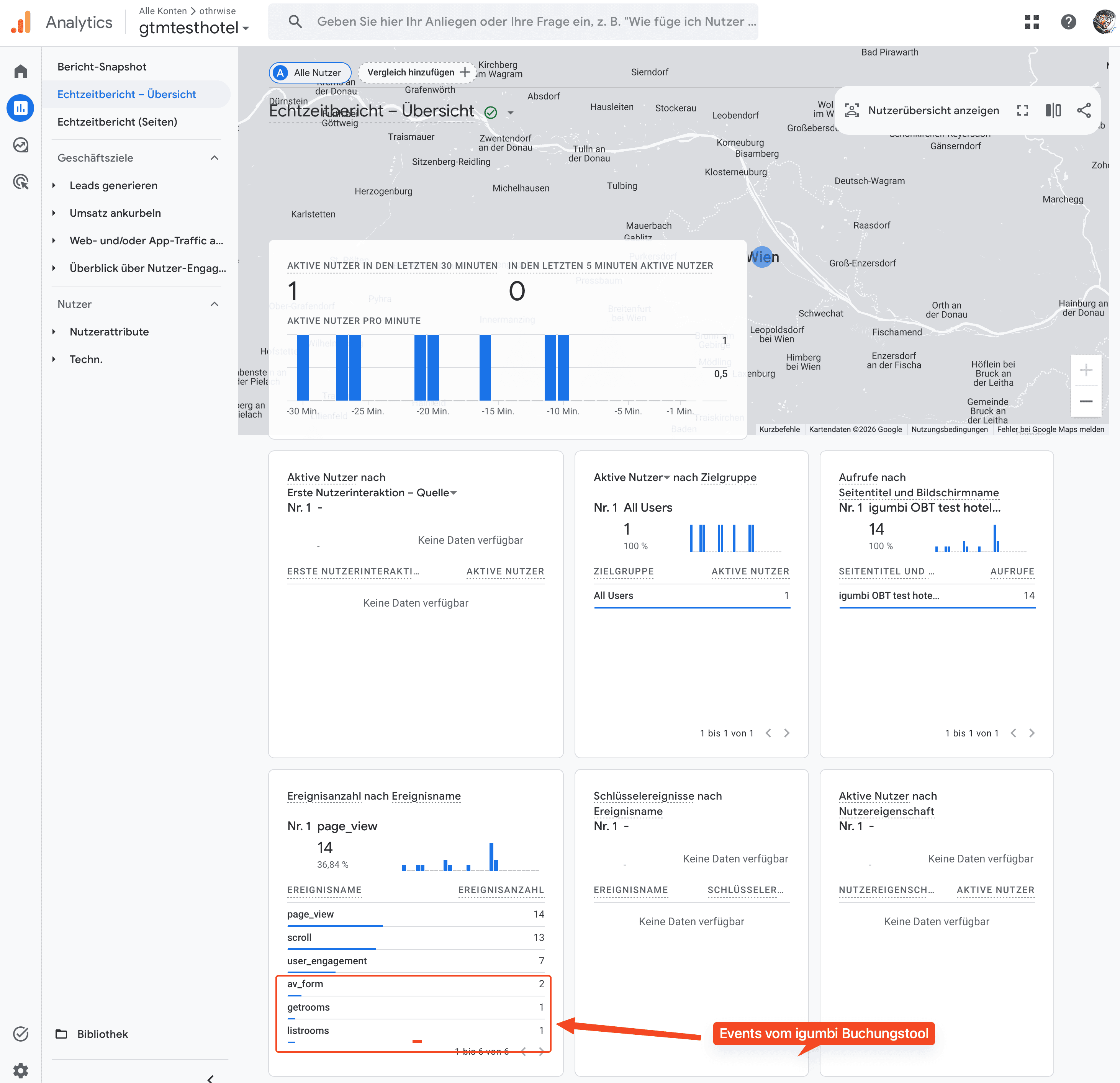
Google Analytics 4 (GA4 / gtag)
If gtag is on the page, events fire automatically — no extra setup needed:
gtag("event", "ibe_finalize");
Events appear in GA4 under Reports → Events. To mark ibe_displayfinal as a conversion (for completed bookings): GA4 → Configure → Events → toggle it on.
Convert booking funnel events in GA4: Go to Explore → Funnel exploration and add the five steps using the event names above to track booking completion rate.
Conversion tracking for hotel bookings:
Add ibe_displayfinal as a conversion goal — it fires only after the server confirms the booking and the confirmation screen is shown. Use ibe_finalize if you also want to measure submission attempts, but ibe_displayfinal is the reliable booking-confirmed signal.
Note on GA4 eCommerce reports:
igumbi uses ibe_* prefixed event names rather than GA4's standard eCommerce event names (view_item_list, add_to_cart, purchase, etc.). This means GA4's built-in Monetization → eCommerce purchases report and automatic funnel visualization will not populate. Use Explore → Funnel exploration and Explore → Free form with the ibe_* events to build your booking analytics instead.
Matomo
Events fire as Matomo custom events:
_paq.push(["trackEvent", "ibe", "finalize"]);
// category = "ibe", action = event name
Find them in Matomo under Behaviour → Events → Category: ibe.
Use the Matomo Funnels plugin and set steps to match actions av_form, listrooms, validate, finalize, displayfinal.
Test page
Live URL: https://www.igumbi.com/gtmtesthotel.html
Use this page to see how we integrated with GTM dataLayer integration.
- Loads the IBE from igumbi production (
www.igumbi.net) — no local dev environment needed - Hotel Tafelbrunn (
48d8f2q),layout=wide2 - GTM container
GTM-N3VKFZMPalready in place
To test: open the URL in GTM Preview mode (Step 6 above), interact with the booking widget, and confirm ibe_av_form and ibe_listrooms appears in the debug panel.
Verifying events in the browser
Open DevTools console on any page with the IBE widget.
Check the dataLayer after interacting with the widget:
javascript
window.dataLayer
// [{event: "ibe_av_form", ibe_event: "av_form"}, {event: "ibe_listrooms", ...}, ...]
Manually fire a test event:
javascript
Obt.tracker('test')
window.dataLayer  // → last entry: {event: "ibe_test", ibe_event: "test"}
Check Matomo queue:
javascript
window._paq
If window.dataLayer shows the ibe_* objects, GTM will receive them.
FAQ
Do I need to add custom code to receive these events? No. If your GTM container or analytics snippet is on the page above the igumbi script, events are received automatically.
What is the difference between validate, finalize, and displayfinal?
validate fires when the booking form passes client-side validation. finalize fires when the form is submitted to the server. displayfinal fires when the server confirms the booking and the confirmation screen is shown — this is the authoritative booking-confirmed signal. Both validate and finalize usually fire together, but a server error means finalize fires without a confirmed booking. Use displayfinal for conversion goals.
How do I set up conversion tracking for finished bookings?
In GA4: Go to Configure → Events and toggle ibe_displayfinal to mark it as a conversion — it fires only on confirmed bookings. In Matomo: Set up a goal using the displayfinal action as your goal condition. Both methods reliably track completed hotel reservations.
What does listrooms_no_offers tell me?
The guest searched but no rooms were available for those dates. Track this rate to identify pricing or inventory gaps.
Can I send extra data with the GTM event (hotel name, arrival date, total price)?
Yes — the ibe_displayfinal event includes value, currency, transaction_id, arrival_date, departure_date, nights, rooms, and guests. All other events push only event and ibe_event. To use these fields in GTM, create a Data Layer Variable for each field name and reference it in your GA4 Event tag parameters.
Does the cookie consent banner affect tracking?
Yes. If your site uses a cookie consent banner (CMP), analytics events are blocked until the guest accepts analytics cookies. Ensure your CMP (e.g. Usercentrics, Cookiebot, Borlabs) is configured to unblock GTM once analytics consent is given — otherwise ibe_* events will not reach GA4 for guests who accept cookies after the page loads. For EU/EEA traffic, configure Consent Mode v2 in GTM to pass consent signals to Google and preserve modeled conversion data for guests who decline.
